Beveiliging van endpoints is tegenwoordig geen luxe meer, maar een noodzaak. Gelukkig helpt Microsoft BitLocker daarbij door schijven te versleutelen. Maar wat als BitLocker nog niet actief is op een apparaat? Of als de recovery key niet goed is opgeslagen?
Met dit PowerShell-script wordt dat automatisch gecontroleerd én opgelost. 🚀
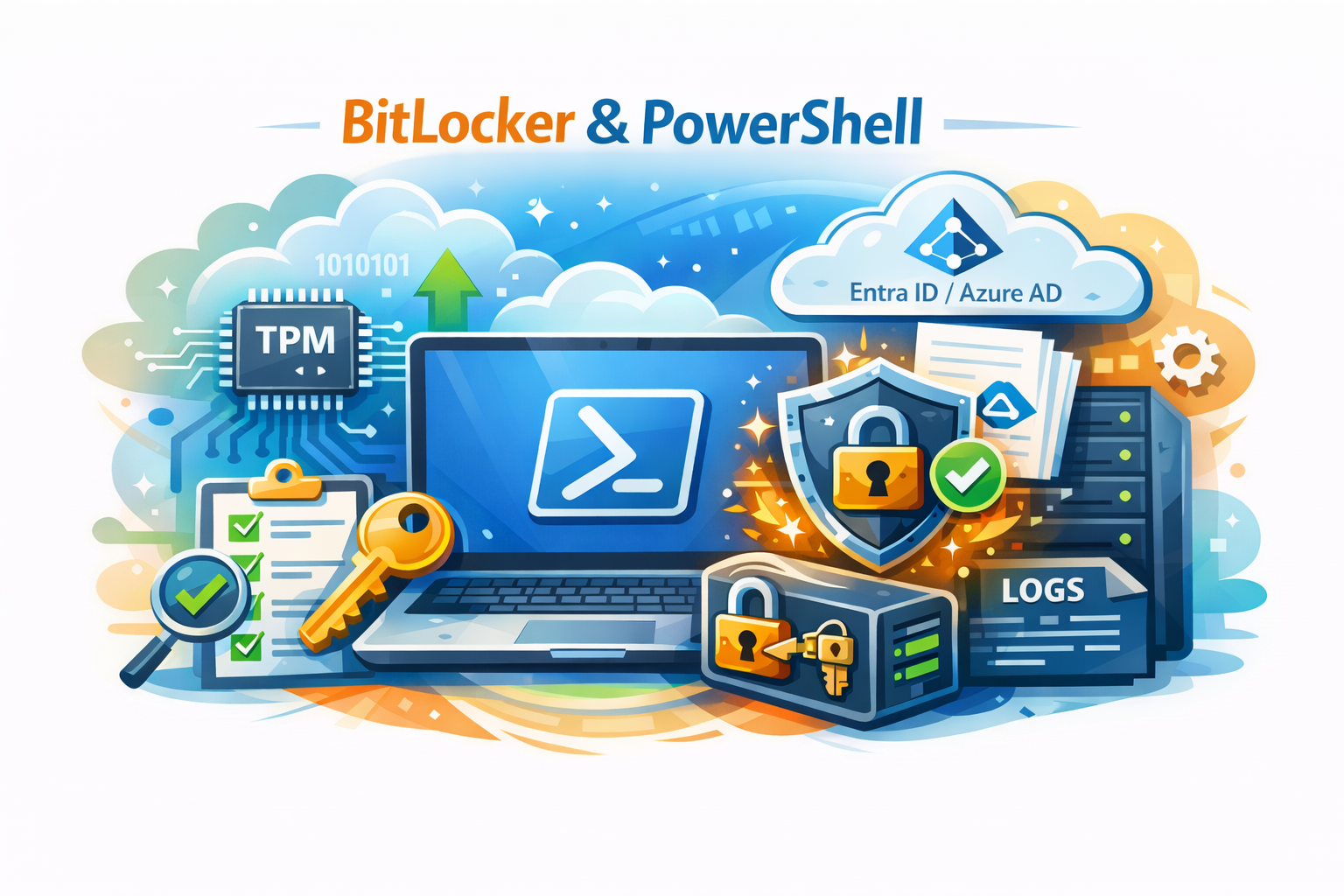
Het script controleert of BitLocker correct is ingesteld op een Windows-apparaat en voert waar nodig automatisch herstelacties uit. Ideaal voor beheer via Intune, beheerplatformen of handmatige deployments.
⚙️ Wat doet het script precies?
Het script voert meerdere controles uit om te garanderen dat BitLocker correct en veilig is geconfigureerd.
🔍 Controle op TPM
Het script controleert eerst of er een TPM-chip aanwezig en klaar voor gebruik is. Zonder TPM kan BitLocker namelijk niet op de standaard veilige manier worden ingezet.
🔐 BitLocker status controleren
Daarna wordt gecontroleerd of BitLocker al actief is op de systeemschijf.
Is BitLocker nog niet ingeschakeld?
Dan wordt de versleuteling automatisch gestart met XTS-AES-256 encryptie.
🗝 Recovery key controleren
Een recovery key is essentieel wanneer toegang tot het systeem verloren dreigt te gaan. Het script controleert daarom of een Recovery Password Protector aanwezig is.
Ontbreekt deze? Dan wordt hij automatisch toegevoegd.
☁️ Backup naar Entra ID / Azure AD
Voor centraal beheer wordt de recovery key automatisch geback-upt naar Entra ID (Azure AD). Hierdoor kunnen beheerders de sleutel altijd terugvinden wanneer dat nodig is.
📝 Logging en troubleshooting
Het script maakt uitgebreide logs met onder andere:
- uitvoerende gebruiker
- apparaatnaam
- IP-adressen
- encryptiestatus
- foutmeldingen
Daarnaast wordt een transcriptbestand aangemaakt dat automatisch wordt gekopieerd naar de Intune Management Extension logs. Zo blijft troubleshooting eenvoudig.
💡 Waarom dit handig is
In grotere omgevingen komt het regelmatig voor dat:
- BitLocker niet is ingeschakeld
- Recovery keys ontbreken
- Keys niet naar Entra ID zijn geüpload
- TPM nog niet correct is geïnitialiseerd
Dit script lost die problemen automatisch op en zorgt voor een consistente beveiligingsconfiguratie op alle apparaten.
Perfect dus voor gebruik als:
- Intune remediation script
- compliance fix
- deployment controle
- endpoint security automatisering
🖥 Ondersteunde systemen
Het script werkt op:
- Windows 10 Pro
- Windows 10 Enterprise
- Windows 10 Education
- Windows 11 Pro
- Windows 11 Enterprise
- Windows 11 Education
Uitvoering moet plaatsvinden als Administrator of SYSTEM.
💻 Het PowerShell-script
param ([switch]$Silent)
<#
    .NOTES
    ===========================================================================
     Created on:    2025-06-21
     Updated on:    2026-03-12
     Created by:    Vincent van Unen
     Filename:      SCA_BitlockercheckenFix.ps1
     Version:       1.3.1
    ===========================================================================
    .DESCRIPTION
        Remediation - BitLocker inschakelen en recovery key back-uppen
        - Controleert of TPM aanwezig en gereed is
        - Controleert of BitLocker al actief is, zo niet, dan wordt het ingeschakeld
        - Controleert of een Recovery Password protector aanwezig is, zo niet, dan wordt deze toegevoegd
        - Back-upt de recovery key naar Entra ID/Azure AD (indien cmdlet beschikbaar)
        - Hard Block: stopt veilig als TPM reset/herinitialisatie nodig lijkt
        - Pending reboot guard: voorkomt FVE_E_REBOOT_REQUIRED tijdens run
        - Geschikt voor Windows 10/11 Pro, Enterprise en Education
        - Uitvoeren als administrator / SYSTEM

    .CHANGELOG
    [1.3.1] 2026-03-12 - FIX: bij bestaande TPM-protector eerst
                         'manage-bde -protectors -enable' en daarna 'manage-bde -on'
                         (anders start encryptie niet ondanks aanwezige protectors)
    [1.3]   2026-03-12 - Duplication-safe enable (manage-bde fallback), Hard Block bij TPM not-ready,
                         verbeterde foutbranching (0x80310031/0x8031004E), logging aangescherpt
    [1.2]   2026-03-12 - Correct parameterset (-TpmProtector), pending reboot guard, extra logging
    [1.1]   2026-03-09 - Opschoning, robuustere logging, betere foutafhandeling
    [1.0]   2025-06-21 - Eerste versie
#>

#region Script metadata
$ScriptAuthor        = "Vincent van Unen"
$ScriptVersion       = "1.3.1"
$ScriptChangeDate    = "2026-03-12"
$ScriptCurrentUser   = $env:UserName
$ScriptRunningDevice = $env:COMPUTERNAME
$CurrentDate         = Get-Date -Format "yyyy-MM-dd"
$LogName             = "SCA_CheckenFix_BitLocker"
#endregion Script metadata

#region Configuration
[Net.ServicePointManager]::SecurityProtocol = [Net.SecurityProtocolType]::Tls12

$MaximumFunctionCount = 16384
$MaximumVariableCount = 16384

$TempDirs = @("C:\Temp","C:\Tmp","C:\Log")

$LogDirectory    = "C:\Log"
$LogFile         = Join-Path $LogDirectory "$LogName $CurrentDate.log"
$TranscriptFile  = Join-Path $LogDirectory "${CurrentDate}_${LogName}_Transcript.log"
$IntuneLogFolder = "C:\ProgramData\Microsoft\IntuneManagementExtension\Logs"

$TranscriptStarted = $false
$ExitCode = 1

$OSDrive = $env:SystemDrive
#endregion Configuration

#region Functions
function Write-Log {
    [CmdletBinding()]
    param (
        [ValidateSet("INFO","WARN","ERROR","FATAL","DEBUG")]
        [string]$Level = "INFO",
        [Parameter(Mandatory = $true)][string]$Message,
        [string]$Path = $LogFile
    )
    try {
        $timestamp = (Get-Date).ToString("yyyy-MM-dd HH:mm:ss.fff")
        Add-Content -Path $Path -Value "[$timestamp] [$Level] $Message" -ErrorAction Stop
    } catch {
        Write-Warning "Logging mislukt: $($_.Exception.Message)"
    }
}

function Write-ConsoleAndLog {
    param (
        [Parameter(Mandatory = $true)][string]$Message,
        [ValidateSet("INFO","WARN","ERROR","FATAL","DEBUG")]
        [string]$Level = "INFO"
    )
    if (-not $Silent) { Write-Output $Message }
    Write-Log -Level $Level -Message $Message
}

function Test-IsAdministrator {
    try {
        if ($env:USERNAME -eq 'SYSTEM') { return $true }
        $currentIdentity = [Security.Principal.WindowsIdentity]::GetCurrent()
        $principal = New-Object Security.Principal.WindowsPrincipal($currentIdentity)
        return $principal.IsInRole([Security.Principal.WindowsBuiltInRole]::Administrator)
    } catch { return $false }
}

function Get-PublicIP {
    try { return (Invoke-RestMethod -Uri "https://ifconfig.me/ip" -TimeoutSec 10 -ErrorAction Stop).Trim() }
    catch { return "Onbekend" }
}

function Get-PrivateIP {
    try {
        $ip = Get-NetIPAddress -AddressFamily IPv4 -ErrorAction Stop |
            Where-Object { $_.IPAddress -notlike "169.254.*" -and $_.IPAddress -ne "127.0.0.1" -and $_.PrefixOrigin -ne "WellKnown" } |
            Sort-Object InterfaceMetric | Select-Object -First 1 -ExpandProperty IPAddress
        if ([string]::IsNullOrWhiteSpace($ip)) { return "Onbekend" }
        return $ip
    } catch { return "Onbekend" }
}

function Test-PendingReboot {
    <# Detecteert veelvoorkomende reboot-triggers (CBS, pendmoves, WU, naamwijziging) #>
    try {
        if (Get-ItemProperty -Path 'HKLM:\SOFTWARE\Microsoft\Windows\CurrentVersion\Component Based Servicing\RebootPending' -ErrorAction SilentlyContinue) { return $true }
        $pn = Get-ItemProperty -Path 'HKLM:\SYSTEM\CurrentControlSet\Control\Session Manager' -Name 'PendingFileRenameOperations' -ErrorAction SilentlyContinue
        if ($pn -and $pn.PendingFileRenameOperations) { return $true }
        if (Get-ItemProperty -Path 'HKLM:\SOFTWARE\Microsoft\Windows\CurrentVersion\WindowsUpdate\Auto Update\RebootRequired' -ErrorAction SilentlyContinue) { return $true }
        $nm = Get-ItemProperty -Path 'HKLM:\SYSTEM\CurrentControlSet\Control\ComputerName\ComputerName' -ErrorAction SilentlyContinue
        $an = Get-ItemProperty -Path 'HKLM:\SYSTEM\CurrentControlSet\Control\ComputerName\ActiveComputerName' -ErrorAction SilentlyContinue
        if ($nm -and $an -and $nm.ComputerName -ne $an.ComputerName) { return $true }
        return $false
    } catch {
        Write-ConsoleAndLog -Level "WARN" -Message "Pending reboot check mislukt: $($_.Exception.Message)"
        return $false
    }
}
#endregion Functions

#region Preparation
foreach ($dir in $TempDirs) {
    if (-not (Test-Path -Path $dir)) { New-Item -ItemType Directory -Path $dir -Force | Out-Null }
}

Write-Log -Message "Current Date = $CurrentDate"
Write-Log -Message "Script Author = $ScriptAuthor"
Write-Log -Message "Script Version = $ScriptVersion"
Write-Log -Message "Script ChangeDate = $ScriptChangeDate"
Write-Log -Message "Current User Running this script = $ScriptCurrentUser"
Write-Log -Message "Current Device Running this script = $ScriptRunningDevice"
Write-Log -Message "Current Public IP = $(Get-PublicIP)"
Write-Log -Message "Current Private IP = $(Get-PrivateIP)"

try {
    Start-Transcript -Path $TranscriptFile -Force -ErrorAction Stop | Out-Null
    $TranscriptStarted = $true
    Write-Log -Message "Transcript gestart: $TranscriptFile"
} catch {
    Write-Log -Level "WARN" -Message "Transcript kon niet worden gestart: $($_.Exception.Message)"
}
#endregion Preparation

try {
    Write-ConsoleAndLog -Message "Start controle op TPM en BitLocker."

    if (-not (Test-IsAdministrator)) { throw "Dit script moet worden uitgevoerd als administrator of SYSTEM." }

    # Pending reboot guard – voorkomt FVE_E_REBOOT_REQUIRED (0x8031004E)
    if (Test-PendingReboot) {
        throw "Herstart vereist voordat BitLocker kan worden ingeschakeld (FVE_E_REBOOT_REQUIRED, 0x8031004E)."
    }

    # Cmdlets beschikbaar?
    if (-not (Get-Command Get-BitLockerVolume -ErrorAction SilentlyContinue)) {
        throw "De BitLocker PowerShell-cmdlets zijn niet beschikbaar op dit systeem."
    }
    if (-not (Get-Command Get-Tpm -ErrorAction SilentlyContinue)) {
        throw "De TPM PowerShell-cmdlets zijn niet beschikbaar op dit systeem."
    }

    $BitLockerVolume = Get-BitLockerVolume -MountPoint $OSDrive -ErrorAction Stop
    $TPM = Get-Tpm -ErrorAction Stop

    Write-ConsoleAndLog -Message "Controle van TPM en BitLocker gestart op $OSDrive."

    # Hard Block: TPM aanwezig maar niet gereed → mogelijke TPM reset nodig (runbook)
    if ($TPM.TpmPresent -and -not $TPM.TpmReady) {
        Write-ConsoleAndLog -Level "ERROR" -Message "HARD BLOCK: TPM is niet gereed. Remediation stopt. Volg het runbook 'TPM reset + BitLocker herstel'."
        $ExitCode = 1
        exit $ExitCode
    }

    if (-not $TPM.TpmPresent)    { throw "TPM is niet aanwezig. BitLocker kan niet met TPM worden geconfigureerd." }
    if (-not $TPM.TpmEnabled)    { throw "TPM is uitgeschakeld. Schakel TPM in BIOS/UEFI in." }
    if (-not $TPM.TpmActivated)  { throw "TPM is niet geactiveerd. Activeer TPM in BIOS/UEFI." }

    # Protectors inventariseren
    $RecoveryProtectors = $BitLockerVolume.KeyProtector | Where-Object { $_.KeyProtectorType -eq "RecoveryPassword" }
    $TpmProtectors      = $BitLockerVolume.KeyProtector | Where-Object { $_.KeyProtectorType -eq "Tpm" }
    $HasTpmProtector    = [bool]$TpmProtectors

    # Recovery Password protector verplicht (voor backup naar Entra ID)
    if (-not $RecoveryProtectors) {
        Write-ConsoleAndLog -Message "Recovery password protector ontbreekt. Deze wordt toegevoegd."
        Add-BitLockerKeyProtector -MountPoint $OSDrive -RecoveryPasswordProtector -ErrorAction Stop | Out-Null
        $BitLockerVolume   = Get-BitLockerVolume -MountPoint $OSDrive -ErrorAction Stop
        $RecoveryProtectors = $BitLockerVolume.KeyProtector | Where-Object { $_.KeyProtectorType -eq "RecoveryPassword" }
    }

    # TPM protector toevoegen als nog niet aanwezig
    if (-not $HasTpmProtector) {
        Write-ConsoleAndLog -Message "TPM protector ontbreekt. Deze wordt toegevoegd."
        Add-BitLockerKeyProtector -MountPoint $OSDrive -TpmProtector -ErrorAction Stop | Out-Null
        $BitLockerVolume = Get-BitLockerVolume -MountPoint $OSDrive -ErrorAction Stop
        $TpmProtectors   = $BitLockerVolume.KeyProtector | Where-Object { $_.KeyProtectorType -eq "Tpm" }
        $HasTpmProtector = [bool]$TpmProtectors
    }

    # BitLocker inschakelen (duplication-safe, met enable-protectors bij bestaande TPM)
    if ($BitLockerVolume.VolumeStatus -eq "FullyDecrypted" -or $BitLockerVolume.ProtectionStatus -eq "Off") {
        Write-ConsoleAndLog -Message "BitLocker is niet actief. Inschakelen wordt gestart."

        # Protectors vóór enable (debug)
        $preKP = $BitLockerVolume.KeyProtector | Select-Object KeyProtectorId, KeyProtectorType
        Write-ConsoleAndLog -Level "DEBUG" -Message ("Protectors vóór Enable-BitLocker:`n" + ($preKP | Out-String))

        try {
            if ($HasTpmProtector) {
                # TPM protector bestaat al → eerst protectors activeren, dan encryptie starten
                $manageBde = (Get-Command manage-bde.exe -ErrorAction SilentlyContinue)
                if ($manageBde) {
                    Write-ConsoleAndLog -Message "TPM‑protector aanwezig → protectors activeren en encryptie starten via manage-bde."
                    & $manageBde.Source -protectors -enable $OSDrive | Out-Null
                    & $manageBde.Source -on $OSDrive -method xts_aes256 -usedspaceonly -skiphardwaretest | Out-Null
                } else {
                    # Fallback: pure PowerShell (zonder extra protector en zonder -SkipHardwareTest om AmbiguousParameterSet te vermijden)
                    Write-ConsoleAndLog -Level "WARN" -Message "manage-bde niet gevonden. Fallback naar PowerShell‑enable zonder extra protector (reboot kan vereist zijn)."
                    Enable-BitLocker -MountPoint $OSDrive -EncryptionMethod XtsAes256 -UsedSpaceOnly -ErrorAction Stop | Out-Null
                }
            }
            else {
                # TPM protector zojuist toegevoegd → correct parameterset met -TpmProtector (OS‑volume + SkipHardwareTest)
                Write-ConsoleAndLog -Message "TPM‑protector toegevoegd → Enable‑BitLocker via -TpmProtector (SkipHardwareTest)."
                Enable-BitLocker `
                    -MountPoint $OSDrive `
                    -TpmProtector `
                    -EncryptionMethod XtsAes256 `
                    -UsedSpaceOnly `
                    -SkipHardwareTest `
                    -ErrorAction Stop | Out-Null
            }

            Write-ConsoleAndLog -Message "Enable‑fase afgerond; status ophalen…"
            Start-Sleep -Seconds 10
            $BitLockerVolume = Get-BitLockerVolume -MountPoint $OSDrive -ErrorAction Stop

            # Protectors ná enable
            $postKP = $BitLockerVolume.KeyProtector | Select-Object KeyProtectorId, KeyProtectorType
            Write-ConsoleAndLog -Level "DEBUG" -Message ("Protectors ná Enable‑BitLocker:`n" + ($postKP | Out-String))
            Write-ConsoleAndLog -Message ("Huidige status: VolumeStatus={0}, ProtectionStatus={1}, EncryptionPercent={2}" -f `
                                         $BitLockerVolume.VolumeStatus, $BitLockerVolume.ProtectionStatus, $BitLockerVolume.EncryptionPercentage)
        }
        catch {
            $global:LastBitLockerError = $_.Exception.Message
            $msg = $global:LastBitLockerError

            if ($msg -match '0x80310031' -or $msg -match 'FVE_E_PROTECTOR_EXISTS') {
                Write-ConsoleAndLog -Level "ERROR" -Message "0x80310031 (FVE_E_PROTECTOR_EXISTS): er bestaat al een protector van dit type. Gebruik de duplication-safe flow (protectors enable + manage-bde -on)."
            }
            elseif ($msg -match '0x8031004E' -or $msg -match 'FVE_E_REBOOT_REQUIRED') {
                Write-ConsoleAndLog -Level "ERROR" -Message "0x8031004E (FVE_E_REBOOT_REQUIRED): herstart vereist voordat BitLocker kan doorgaan."
            }
            else {
                Write-ConsoleAndLog -Level "ERROR" -Message "Enable‑BitLocker mislukt: $msg"
            }
            throw
        }
    }
    else {
        Write-ConsoleAndLog -Message "BitLocker is al actief of de versleuteling is al gestart."
    }

    # Valideer RecoveryPassword protectors
    $BitLockerVolume   = Get-BitLockerVolume -MountPoint $OSDrive -ErrorAction Stop
    $RecoveryProtectors = $BitLockerVolume.KeyProtector | Where-Object { $_.KeyProtectorType -eq "RecoveryPassword" }
    if (-not $RecoveryProtectors) { throw "Recovery password protector ontbreekt nog steeds na herstelpoging." }

    # Backup recovery keys naar Entra ID (indien cmdlet beschikbaar)
    if (Get-Command BackupToAAD-BitLockerKeyProtector -ErrorAction SilentlyContinue) {
        foreach ($Protector in $RecoveryProtectors) {
            try {
                BackupToAAD-BitLockerKeyProtector -MountPoint $OSDrive -KeyProtectorId $Protector.KeyProtectorId -ErrorAction Stop
                Write-ConsoleAndLog -Message "Recovery key succesvol geback-upt naar Entra ID."
            } catch {
                Write-ConsoleAndLog -Level "WARN" -Message "Backup naar Entra ID is niet gelukt: $($_.Exception.Message)"
            }
        }
    } else {
        Write-ConsoleAndLog -Level "WARN" -Message "Cmdlet BackupToAAD-BitLockerKeyProtector is niet beschikbaar. Backup naar Entra ID is overgeslagen."
    }

    # Eindstatus
    $FinalStatus = Get-BitLockerVolume -MountPoint $OSDrive -ErrorAction Stop

    Write-ConsoleAndLog -Message "Eindstatus:"
    Write-ConsoleAndLog -Message "VolumeStatus      : $($FinalStatus.VolumeStatus)"
    Write-ConsoleAndLog -Message "ProtectionStatus  : $($FinalStatus.ProtectionStatus)"
    Write-ConsoleAndLog -Message "EncryptionPercent : $($FinalStatus.EncryptionPercentage)"

    if ($FinalStatus.ProtectionStatus -eq "On" -or $FinalStatus.VolumeStatus -in @("EncryptionInProgress", "FullyEncrypted")) {
        Write-ConsoleAndLog -Message "BitLocker-remediation is succesvol gestart of voltooid."
        $ExitCode = 0
    } else {
        throw "BitLocker-remediation is niet succesvol."
    }
}
catch {
    Write-ConsoleAndLog -Level "ERROR" -Message "Remediation mislukt: $($_.Exception.Message)"
    $ExitCode = 1
}
finally {
    if ($TranscriptStarted) {
        try {
            Stop-Transcript | Out-Null
            Write-Log -Message "Transcript gestopt."
        } catch {
            Write-Log -Level "WARN" -Message "Stop-Transcript mislukt: $($_.Exception.Message)"
        }
    }

    try {
        if (Test-Path -Path $IntuneLogFolder) {
            Copy-Item -Path $TranscriptFile -Destination $IntuneLogFolder -Force -ErrorAction Stop
            Write-Log -Message "Transcript gekopieerd naar $IntuneLogFolder"
        } else {
            Write-Log -Level "WARN" -Message "Intune-logmap bestaat niet: $IntuneLogFolder"
        }
    } catch {
        Write-Log -Level "WARN" -Message "Kopiëren van transcript is mislukt: $($_.Exception.Message)"
    }

    exit $ExitCode
}
🚀 Samenvatting
Met dit script zorg je ervoor dat:
✅ BitLocker automatisch wordt ingeschakeld
✅ TPM wordt gecontroleerd
✅ Recovery keys automatisch worden aangemaakt
✅ Recovery keys veilig in Entra ID worden opgeslagen
✅ Uitgebreide logging beschikbaar is
Een krachtige manier om endpoint-beveiliging automatisch af te dwingen binnen je organisatie.